Bypass LCD fan hardware POST on SONY all-in-one VGC-V2M

A client has a SONY VGC-V2M all-in-one PC. It is like a fat TV – a P4 based motherboard in a black case with built-in LCD, DVD, and all the usual sockets.

If it halts on a LCD FAN hardware error then the computer is still usable until you can investigate further. At the American Megatrends BIOS POST then do the following sequence to get Windows booted,

F2     to get to BIOS
ESC    to exit from bios it will ask to discard or not
<return or enter>  to pick the OK to discard

now Windows will continue to boot.  Now is obviously the time to make sure your backups are up to date !

Adding Memory

As an aside it is actually easy to upgrade the memory in this all-in-one. You slide the back up a few inches until it catches and then it sort of pops off by moving it back away from the case. How it latches is some locking tabs that fit through gates into a slide so you have to slide the back up until the tabs are aligned at the gates and then it easily pops off backwards. Don’t force it.

The memory is under the metal panel on the right hand side (looking from the back). Motherboard has two slots and AFAIK it is 1 GB max of DDR PC3200 400 Mhz CL3 or similar per slot. You probably have 512 MB fitted and running Windows XP so for routine Office use just fit another 512 MB for the cheapest upgrade as Windows XP is now unusable rubbish on only 512 MB but fine on 1GB. Maximum is 2 GB in total i.e. 1GB+1GB.

Fixing lost CMOS on Acer Aspire One

Now it is summer then computer equipment can overheat. An odd problem appeared on an Acer Aspire One model ZG5 also known as the AOA 150 after it got run on a bed. If you are going to watch movies or do work in bed then I recommend to everyone that you buy one of those melamine tea trays and turn the tray upside down and then use that as a laptop support. When the Acer powered up then it had no display. It had power and the hard disk unparked as if to start up but nothing like normal booting activity and always a blank screen. Over-enthusiastically I pulled this computer apart before I looked around for a less screw-driver related fix. The laptop is easy to dismantle once you know how to remove the keyboard (I have already replaced this before – there are no screws but three tabs that are just above the top row of keys and you click these in. The keyboard is then removed, taking care to unclick the flexible ribbon). But I digress and re-assembled it and did this Acer emergency BIOS recovery trick which is detailed on the ACER web site here,

http://support.acer.com/acerpanam/netbook/0000/acer/aspireoneaoa110/aspireoneaoa110faq22.shtml


  1. format a USB key using Windows FAT. Probably work with FAT32 but I used FAT. I used an old 1 GByte key but probably any size would work. It does not have to be bootable – just formatted.
  2. download the latest BIOS ZIP file from the Acer website at http://support.acer-euro.com/drivers/notebook/as_one_150.html  This will currently be v.3314.zip
  3. unzip this BIOS zip file contents into the USB key
  4. rename the ZG5_3114.fd to a new file name ZG5IA32.FD (it must be that name). You should now have at least this ZG5IA32.FD file you renamed and the FLASHIT.EXE Note that the file names are case insensitive – this is DOS.
  5. Insert the USB key into the left hand USB port on the broken Acer.
  6. Insert the Power socket
  7. Hold down the Fn and the Esc keys and then push on the power button as normal keeping the Fn+Esc keys pressed.
  8. The power light will go on then flash and the USB key activity light may also blink. Once the power light has flickered then you can release the Fn+Esc
  9. After all the lights have stopped blinking then it is finished. It should reboot by itself and then it will now be working fine. You will have to reset the date/time.

If it still doesn’t work but it still has the power coming on then retry the process above to make sure you are doing all the steps right as this should fix this problem.


Removing dust from CPU coolers works

I’ve always been loathe to clean the insides of computers but then I have spent most of my life with systems in machine rooms with filtered air. Taking machines down to remove dust bunnies makes no sense in a carrier-grade environment where you prevent dust in the first place and you do anything to protect uptime. The retail-domestic environment is rather different. You can’t filter dust unless you exclude humans and pets as dust is for the most part bits of human i.e. skin that we slough off, as well as dirt, hair and pet fur. Yes, dust is PEOPLE !

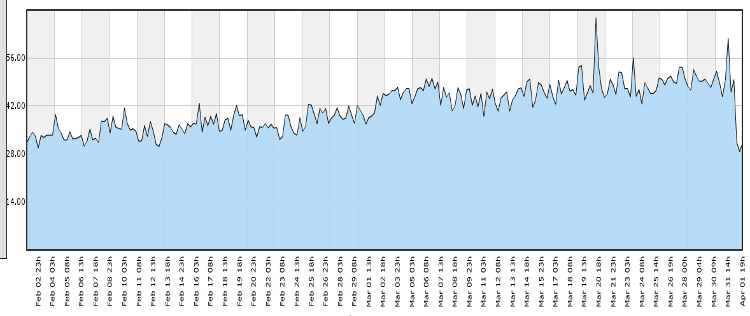
So what evidence do I have that it can make a difference ? I now try and log CPU and hard disk temperatures for any machine I manage to my central Pandora FMS system. Microsoft Windows is very poor in exposing the CPU temperature sensors with no proper support at all via WMI so you must rely on 3rd party programs of which few have a command line interface to allow cron-like collection and central logging. GNU/Linux machines on the other hand have the lm-sensors package and that generally works for all modern machines and gives a command-line access to the CPU temperatures (use the hddtemp package for hard disks). Here is a graph of a Ubuntu 11.04 based server we have in a kitchen environment,

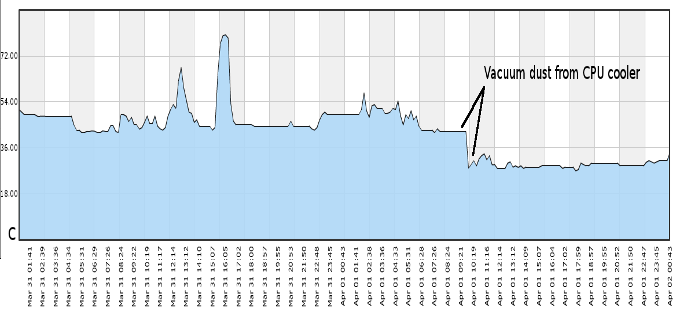
About 3 months ago the average CPU temperature was about 30 degrees C (86 F) but this has trended up and was now about 44 degrees C (111 F) when idle. So for a spring-clean I decided to open the case and clean it out. There wasn’t a massive amount of dust but the AMD stock cooler vanes were clogged. Just used a vacuum cleaner to suck up the dust. Hold the CPU cooler fan to stop it from manically spinning around and just put the vacuum cleaner on maximum and pass over the cooler fan. The dust should slowly suck out.

As you can see it made a dramatic change to the CPU temp with a 14 degree C drop  (about 25 F drop). This is now the 3rd retail-domestic machine that I have cleaned and observed the side-effects and it is certainly worthwhile as long as you have recorded the CPU temperature over time to give yourself (and the client) the objective evidence that this is a necessary job.

Foil-backed insulation blocking WIFI

Client has fixed up an old building and has used solid insulation which has an aluminium foil backing that acts as a heat and vapour block. It also stops WIFI dead.

Normally this wouldn’t be a problem and all your signals would be under the roof but this client has a 3-story rustic building with the office at the top and a bedroom at the back on the ground floor with a new roof. Whilst the WIFI signals are fine from the top to the bottom of the main building, immediately you pass under the foil-insulation of the extension then the signals stop.

The most cost effective solution to get WIFI to this back room without running Ethernet cables through meter thick stone walls is to use powerline adapters. Recently I have seen the retail prices for these plummet to less than 50 Euros per pair (for TP-Link brand from Amazon.it or Amazon.co.uk). Currently testing these out and they are looking fine but there is one caution that you need to consider.

These units give off a high frequency audible noise. It is like the flyback transformer of an old style CRT or TV. From experience with different customers these high frequencies can be annoying and frustrating to remove. So you may need to use powerline technology to sneak through the building and then for the last few meters use a cheap switch plus long pre-made ethernet cables or another WIFI AP.

Microwave oven wiring fix for scooter wiring

The wire on the temperature gauge of my Aprilia Leonardo finally broke near the socket so the temperature reading stayed on low/no reading. If you look you can see a metal pin on the gauge that the needle sits against. After about 2 minutes of motor operation the needle should move off that pin. If it doesn’t then check that wire.

To do this ideally remove the right-hand side inspection panel and the temperature sensor is towards the middle bolted into the engine block around the same level as the starter motor (the oil pressure sensor is much lower).

This can both come loose (mine did a year before) or finally snap off at the plug. The temperature sensor has a spade plug end on it so nothing special but you don’t have any slack to play with on the wiring loom so you need an extension wire but I discovered a nice fix that will probably work for you too.

Many months ago I had picked up a junk microwave from the road side: I had pulled it apart to see what was inside and I remember keeping all the wiring looms from the microwave. The wiring loom connects all the microwave door interlock switches together to the control board. Looking around for suitable wire to repair the bike I noticed that the microwave loom had these nice sockets with moulded plastic covers and reasonably good sized cable. The cable lengths are only a short distance of a few inches/centimetres but that’s all I needed.

I tried one of the sockets fitted the temperature sensor on the bike and it clicked on perfectly. So I chopped off one of the sockets with about 3 inches/8 cm of wire on it, stripped back the end and then stripped back the end of the broken wire on the bike, cleaned the corrosion away and then used a barrel/coupler connector to join the new bit of ex-microwave wire to the bike wiring loom wire.

It worked.

Pop stuck-on Pentium4 from heatsinks using Salmon slicing knife

Client PC had some weird problems; could start sometimes, would shutdown, runs “slow” though usually fine. Used CPUID HWMonitor and the SiSoftware sandra to see what’s up and the CPU temperature was high (75 Deg C).

The SiSoftware sandra processor reports a CPU temperature which correlates with the HWMonitor TMPIN1.

Got this desktop back to base and popped the hood. Cleaned out the usual dust bunnies and then decided to check the CPU seating on the heatsink. This is a socket 478 on an ASRock motherboard so levered the heatsink retaining clip but the heatsink wouldn’t come out and seemed frozen in place. Used a bit of force and when I did get it out the CPU had been pulled out too from its ZIF – the CPU was firmly glued to the heatsink by dry white heatsink compound.

I thought of what to get that off – a scalpel would be too sharp and dangerous and not big enough and then I remembered my favourite kitchen knife – the slicing/ham/salmon knife. This is 30 cm long, straight edged (not serrated), thin, about 2cm wide and a rounded tip.

I put the knife edge up to where one edge of the CPU and heatsink touched and then applied pressure. The knife broke the glue bond and the CPU was loose. Used the knife to scrape the heatsink clean.

Re-assembly was easy, re-inserted the CPU back into its ZIF socket that it had been pulled from (obviously open the locking lever first !), added usual thin smear of new thermal grease to the heatsink and put it back though you may have to do this in conjunction with the heatsink retaining clips as the heatsink may need to go in at an angle so the clips can hook into the bracket.

Screwed back in fans and powered up. BIOS looked good with a starting reading from cold of 28 deg C then working its way up to 34 deg C. Then ran Windows and now HWMonitor and SiSoftware sandra say 38 deg C and this maxes out to 42 deg C.

That’s up to a 30 degree C drop. Now the system should stay stable.

ps: As a safety note clean the knife of any residue. White greases are ceramic based and one important ceramic is Beryllium oxide which is poisonous in a loose form. These are not used for thermal grease now but may have been used in the past and unless you installed the heatsink yourself (in this case I didn’t) you won’t know what the risk is.

A fix for Korg nanoPAD PADs not working

I’d bought this over a year ago and never really got it working and put it aside as I had got a nanoKEY and a nanoPAD (Black) and just used the nanoKEY.

Recently I found this again in the cupboard and thought that I really had to get to the bottom of why it did not go (I was using Ubuntu so blamed that to start with without following it up).

I plugged it into my Ubuntu machine (10.10) and used the MIDI monitor in Qmidiroute and only saw the X-Y events – this does pitch modulation, plus the system events for the scene button but not a single event from the 12 PADs.

I also plugged it into Windows and used a MIDI monitor and also had no MIDI events for the PADs. This really did seem to be a hardware problem and nothing to do with Ubuntu. I really should have done this test before the warranty expired but this meant I could open it up without any guilt.

Under the bottom of the case under the tiny rubber feet are 6 screws. Remove these. You will see a metal plate which is the support for the 12 PADs plus a copper shield, 1 large flexible ribbon cable for the PADs and underneath that 1 small flexible ribbon cable for the X-Y control. These plug into a PCB.

With it plugged into the USB and with the MIDI monitor program going I checked I had X-Y events and no PAD events. I then popped off the clip to the large cable that goes to the PADs and as I removed it then I got events. This suggested some alignment issue or short i.e. the chip is OK.

I unscrewed the PADs metal plate – I removed the copper shield cable (it is glued at the PAD plate end) and had a look. Nothing really to see. It has the 12 square sections that are the sensor elements on plastic film and a big rubber molding for the PAD buttons. No obvious damage.

I then did something weird but I wanted to see how the pads sensor elements were constructed as it looked just like the internals of a some kinds of PC keyboards (they have a similar looking plastic film and flexible PCB though the nanoPAD uses Force Sensing Resistors); I peeled back the top layer of plastic that was over the first two buttons – JUST the first two buttons and peeled it back so that I didn’t crease the plastic. It has a lot of glue holding it down at the start and I wondered if this could be some issue but it peeled back OK (bit of force needed) and exposed the first two PAD elements (i.e.  the ones closest to the X-Y controller).

I then smoothed the plastic film back into place and plugged the PAD cable back into the PCB.

I tried it and it worked !

It is velocity sensitive and I correctly got events on all PADs with a very light touch yielding say a velocity value of 25 and a bash yielding a velocity of the maximum of 127. I hit them very hard with fingers and very light and they all seemed to be the same sensitivity.

I re-assembled; PAD metal frame screwed back, pushed back copper shield onto PAD metal frame, screwed case back on and added rubber feet into place.

Still worked. I was very pleased.

I could not see what the heck was actually really wrong in the end though I had cleared the fault. Maybe that glue was holding in moisture from manufacture ? Who knows as the problem is now gone and it doesn’t seem to be coming back for my unit yet.

I’d looked around for fixes to the Korg nanoPAD and I saw a number of people with the PADs failing even after light (or in my case practically no)  use. So I suspect a manufacturing defect and as far as I can see Korg seem happy to replace the units if you report this in warranty period so there are no real tears here except loss of your time.

It could be that the fix I described above i.e. peeling back that top layer of the plastic film on the start of the PAD sensor assembly works for you too and there is no harm in trying this if you have a broken unit out of warranty.

Side effects of fault voltage regulator on Aprilia Leonardo 125 ST

About 6 months ago the voltage regulator failed on my Aprilia Leonardo 125 ST (2001) but I’m now confident that it was playing up before that time.

I’ve had the bike for 3 years with no problems and then the battery failed earlier this year. I assumed it was just old and so bought a new battery and it was working well for a few weeks until one day I came home and smelt boiling acid. This brought back memories as I’ve worked on very large battery banks (up to 10,000 AH at 50VDC for TELCOs) and so recognised that acrid smell of heavily working batteries.

I carefully popped the seat open and removed the battery cover. Acid steam was venting. I got water, goggles and gloves and unbolted the battery and removed it. Beh ! brand new battery cooked. The next day I re-charged the battery, put it back in the bike and it seemed OK but I doubt it would last.  Everything seemed fine though with an expected battery voltage.

I’ll jump to the end and what was happening was that the voltage regulator was failing but only intermittently. It eventually failed long enough for me to see a reading of 17 volts on the battery terminals !

The side effect of this though was the following…

  • the headlights would run normally and then would run brighter. I drive with the lights on all the time and so the higher voltage meant that they drew more current and this both contributed to them blowing faster and drawing more current through the light switch. I’d noticed this but never really thought much of it. I’ve blogged about the switch failure here.
  • when the battery failed then I had trouble starting the bike and so this meant more cranking. This probably contributed to increased wear on the starter brushes. I blogged this here.
  • the increased voltage meant an increase in current overall for all systems and so this probably helped the ignition switch to also slowly unsolder itself. I’ve blogged this here.

So: if you notice your lights altering in intensity a bit, or the radiator fan changing sound/speed, or certainly if  the battery is getting hot then you must check the voltage on the battery terminals is precisely as expected (which is usually under 14 Volts).

With intermittent problems there is not really much you can do because there are no engine management system over-volt indicators on such an old scooter so you just have to be alert for these subtle indications in the lights or fan sound before you end up with a boiled battery and a whole pile of other electrical problems.

The voltage regulator is the same across a wide range of Aprilia bikes so the part can be bought fairly cheaply second hand or you can invest in a new one. Once I put a new regulator in then I replaced the battery as the cooked one couldn’t be relied on.


Dead spot on Aprilia Leonardo starter motor

Another electrical problem but I found out how to prove this and discovered a very useful get-you-home fix; The problem is that I tried to start the bike but just heard the click of the starter relay.

The quick answer to what I eventually found was that the brushes in the starter motor had worn down to the last little bit (on 43,000 kms). Minor variations in the commutator meant that the brush did not touch at one point. It had a “dead spot”.

I discovered a get-you-home fix; Turn on the ignition and push the starter switch then bounce hard up and down on the seat (like you are testing the shocks). This rotates the starter motor around a little to step over the dead spot if it is a dead spot and it may start – it did for me.

If that fixes your problem then get to a garage or home in one go because what it means is probably that your starter bushes are down to the last bit of metal and this will fail to start again and the bouncing on the seat trick may not work.

As I mentioned I accidentally discovered the temporary fix but in proving what was actually wrong I also worked out a test routine as it could be one of 4 different things,

  1. the relay contacts not working
  2. no 12VDC +ve in
  3. no Earth
  4. problem with starter motor

When you push the ignition switch then you should hear a solid click of the relay every time you push in the switch. The relay is located under the right hand side of the seat and the contacts are visible through an air vent just above the right hand inspection opening. They are two large lugs.

If you don’t hear this click then you have a problem with the relay circuit from the starter switch on the handlebar to the relay. You’ll have to trace this out with a multimeter though if you are on the road and don’t have a multimeter then I would,

  • Check fuses are OK
  • check wiring connections to relay and to starter switch look ok (no corrosion)
  • check starter switch making contact (if you can you could try to prove by shorting the switch contacts with a wire)

If the relay is making a click and if you don’t have a multimeter you can test (1) and (4) by shorting the contacts of the relay with a bit of wire. Don’t short to frame – just between the contacts. One side is always 12V +ve and the other connects through the starter motor to the engine earth. With the ignition OFF if you try and short the relay contacts and they do NOT spark then the starter motor (or Earth or +ve supply) probably has a problem. If they DO spark then the relay probably has a problem. Take care with shorting this obviously.

If you do have a multimeter then testing is very easy. You should see 12 volts on one side of the relay all the time and when you push the starter switch then it should appear on the other side.  If it does not then the relay is probably faulty.

If you do see the relay working then the 12 volt supply goes to the starter motor via the heavy cable (then through the motor to the earth). With the ignition off then if you measure the resistance from the battery -ve/Earth post to the starter relay lug that goes to the starter motor (not the other side of the relay as that is always live !) then you should see less than an ohm e.g. only half an ohm (0.5 Ω) – basically a near short as the starter motor is about 500 watts so at 12 Volts that means about 0.3 ohms. If you see a high reading (more than an ohm) or an open circuit then check that the case of the starter motor is low resistance (it should be at earth) and then check that the lug into starter motor is low resistance. The starter case will be corroded a bit so make sure you are touching actual metal.

If your finding is that the starter motor has a high resistance through it then it is probably the brushes. The starter motor is easy to remove though it will clash with the carburettor so not much wiggle room. The starter motor is also easy to pull apart and if it is a worn brush then this is obvious. You may be able to get a few more starts by bending the brush housing a bit but the brush wire is what will stop you in the end. If you do bend the housing to gain some starts then you can test the motor on the bench by checking the resistance stays low between the case and terminal lug whilst you slowly rotate the motor by hand one whole revolution. It should stay low ohms at every point.

If it is an original Mitsui starter motor then I don’t believe that you can get replacement brushes assembly though an auto electrician may know of an equivalent brush part. AFAIKS the starter motor is the same for all  Leonardo 125 and 150 models for all years (96-04) and for some other models that use the Rotax Type 120/154 (120S-154S) engine (e.g. Scarabeo 125/150/200 from 99-03 and also the BMW C1 125/200 from 00-03 ). The OEM Aprilia starter motors are very expensive – but there are much cheaper “Economical” or equivalent motors that are made that are a 1/4 of the price new. Unless you know the kilometres of a second hand bike or you can actually see the bushes to see how much is left on them I wouldn’t buy a second hand starter motor.


Fixing Linksys WRT54GC – actually the PSU

Client of mine had his trading systems disconnect from the internet and his local lan device, a Cisco Linksys WRT54GC V3 – it had no lights.

On-site I checked the Linksys PSU ( a small 5V 1A adapter) with a multimeter and it showed (used a paper-clip to poke into the hole) about 4.7 volts. Which seemed OK at the time. So swapped out the client device for a spare non-Linksys Wifi router and the internet was back for client.

Got the Linksys back home and then popped the cover (see below) and powered it up. The supply pin dropped to 4.2 volts and there was only 1.5 volts on the memory chip (an ETRON SDRAM chip with pin 1 and 54 as the VDD and VSS) rather than the expected 3 volts or so.

Pulling apart the WRT54GC

The WRT54GC is not designed to be undone but you can if you don’t care about cosmetic damage. You must remove the bottom first by working your way around with a flat blade (not sharp – I used a blanking plate from the back of a desktop PC case) and popping in the plastic tabs. There are 3 tabs on the ethernet plug side, three on the aerial side, 2 on the front (middle and to right) and 2 on the reset flap side (left and right). There may be a correct tool inside the Linksys factory but I don’t know what this is – expect to break some of the tiny plastic tabs. With the bottom off then the PCB is held on by 3 screws to the top of the case. That’s it – not much to see.

Pulled apart Linksys WRTG54GC and PSU

Actually a PSU problem

Later I rechecked the PSU unplugged and it was down to 1.7 volts. What ? OK definitely a faulty PSU. I found a close equivalent of a 4.5 V PSU from a Belkin wifi repeater which had the same DC plug size and used that on the Linksys and the Linksys device came to life. Oh great so after all that it was just the PSU (which I didn’t have any 5V spares to test with).

Pulling part the Power Supply adapter

So given I had gone so far I decided to see what was inside the Linksys PSU as well and why it failed in such an odd way. These are small sealed units – they are not supposed to be opened. Used a flat-blade screwdriver and hammer to pop the cover off (you can see the insides at the bottom of the picture above) and the fault is obvious – a swollen electrolytic, a TEAPO 1000uF 10V capacitor on the output part of the PSU. Manufacturing date is (as a guess) 09/08 ? ESR in circuit says 1.4 – should be less than 0.1.

Replaced with a spare capacitor I had lying around that was cannibalised from another device (I think an old CDROM drive) and now the PSU has a 5.2 VDC level that stays steady and, more importantly, I plugged it into the re-assembled Linksys router and it all works – blinking lights. I’ll keep it powered up for while to make sure it is stable.

I will buy a new PSU for the client to use with their Linksys so I can get back my spare wifi router. I don’t want to use this repaired PSU at a client site as it is unwise given I’ve broken the PSU case open and though I’ll glue it back again it won’t be as strong a seal as the manufacturer molding. I will keep this repaired PSU as a spare for any future testing though.

Aprilia Leonardo 125 head light switch repair

And now for something completely different but this uses electricity so thought I would add it here; Front lights stopped working on a 2001 Aprilia Leonardo 125 (ST). The fix worked out to be rather easy: There is no relay with this – it is wired from an ignition supply through the right-hand light selector to the left-hand high/low beam switch and then down to the headlights.

To test this you need to remove the back of the display console like you would do to top up the brake fluid (i.e. you would have to remove your windsheild/windscreen as well if you have one).

If you look inside where the right-hand side controls are you have the starter motor switch on the bottom and the light selector above it. The Light selector is in two parts each with 3 pins; the top of the switch is the main lights and the bottom is the back and front side light (which is a small light in the middle of the front light cluster). For the main beam section it has a green supply wire and a black/yellow wire that goes across to the left hand side high-low beam selector. There will be regional variations with this switch but they should function the same.

With the ignition on then you should get 12 Volts on the green supply wires and when the switch is moved to the on position then the 12V should appear on the other pin.

With mine it wasn’t so I remove the switch; to do this there are on the back, a tab on each side of the switch towards the top which you need  small flat screwdriver to push in and so can now push the switch out. The switch comes out and up as a complete assembly.

There may be newer models that are all sealed but with mine the dismantle was easy – on the back of the switch there is a section that pops down and you can now take out the inner red spacer and then slide out the switch lever. My fault was obvious; over time the switch has heated up and the plastic of the switch has melted and has stopped the switch contact from staying in contact. Cleaned out plastic with a knife, bit of plain grease, reassembled, tested and installed and the lights worked.

Second hand (or even new) this part is quite cheap so why bother with a repair ? The problem is that the bike isn’t street legal without lights so if it can be fixed without having to hunt for replacement parts then your downtime is reduced.  While you are at it, if it hasn’t been done, you can do your brake maintenance given you have the master-cylinders exposed.

Epson DX5000 printing borderless – bogus paper jam error

This is a long story…..We have an Epson DX5000 with a CISS that was found at the trash with the CISS intact but the CISS ink feed tube guide/holder (that comes with your CISS kit) was broken off. Out of habit I collect printers for their motors and other parts but this is the first time I’ve seen an abandoned CISS (4 colour). I just had to see if I could make it work or, at least, re-use the CISS in another printer. It seemed to have around 50ml in each reservoir so a bit messy – but it was raining so the ink washed off (it is dye ink).

Without this little plastic guide in place the CISS ink feed tubes would drop and collide with the print carriage.  From experimenting with this I found you have to get this near perfect alignment else it just clips the print carriage as it zips back and forth. The plastic shrouds on the print carriage almost look designed to interfere with foreign objects like the CISS ink feed tubes. With the DX5000 then there is so little gap the scanner/printer cover pushes down and can hit this  ink feed tube guide and thus push it into the path of the print carriage.

Image showing position of tube guide and where to use gaffer/duct tape

Details of tube retainer position and use of gaffer/tape.

The fix I found is very easy. For the CISS ink feed tube guide I superglued it to a thin 1.5mm by 20mm x 20mm bit of foam rubber similar to what you use on the base of equipment as rubber feet and then glued this in place. This made it slightly more proud and so had a better tolerance in clearing the print carriage.

I then used gaffer/duct tape on the ink feed tubes where the tubes leave the printer. This keeps the tubes in place and especially keeps the printer cover just a little up and out of the way thus stopping it from pushing the CISS ink tube guide that I had glued in down into the print carriage.

I bleed the many air bubbles by lifting the CISS ink reservoirs up high. You never normally do this – the ink reservoirs must always normally stay on the same level as the base of the printer else they will siphon out. After a week it settled down and we’ve found it perfect for high-volume draft work such as book drafts. The CISS cartridges have auto-reset chips in them so when the ink levels are low then the chips reset themselves back to full. So that is the history of that printer.

Now the odd problem of the title: we have found is that if you want to do borderless then you must select Epson paper stock. If you say “plain paper” in the print driver then it says that this option is not available for this media and then resets the borderless setting off.

If you specify the Epson paper then the number of sizes in the media size option reduces and importantly for us for our test, the A5 disappeared as, I can guess, Epson do not do A5 card intended for borderless printing. If you try picking A4, but load your non-Epson A5 then it starts to load the paper but then it says “Paper Jam” though it provides an “Eject” button and that works fine so there isn’t really a paper jam per se.

I know this is true because if I pick plain paper A4 and load A5 stock landscape and only print a (normal with border) image then it works perfectly and prints on the A5 and then tractors the paper out without complaining that you told it was A4 but only fed A5.

The paper jam that it says that it has when you try this trick with non-Epson paper on borderless seems to be some catch-all complaint about the paper stock that it detects before it starts up to print. There is some kind of sensing logic at the start of the job when it runs the print head back and forth before it has started printing the image. Bit annoying as we wanted to print borderless on A5 scored card stock and can only do with-border.


Success through experience – the hard way.

If you’ve looked at the fixes I’ve listed here it seems that the fault and the solution are found without any problems and that there is a straight line between these two.

Not always so – I was able to fix the Acer flat panel screen because earlier in the year I had worked on the internals of two other screens (both trashware) without success; one was a generic 15in and one was an ex-medical system 17inch touch screen that I so want to fix. So by now I already had many hours of experience of dismantling, measuring voltages and re-assembling these kind of screens without injuring myself or damaging the parts but with much disappointment.

My experience on these found items means that I approached the most recent find with a lot more confidence and speed of dismantling and re-assembling and it was successful. Ultimately this knowledge all goes to benefit work I do for customers too.

Easy repair of an Acer AL1721 flat panel (trashware)

Walked some trash to the rubbish bins and saw a 17inch Acer AL1721 flat panel screen (for a PC)  dumped at the bins. Don’t get to see many flat panels. Seemed to not have a cracked screen so I just had to take this back home.

At home I used a spare 5AMP 12 V DC power pack (centre positive) I had similar to what is used for CCTV cameras and it kind of worked but screen blanked out when DC plug was wiggled.

This had to be easy to fix so I unscrewed the screen back (4 x small black screws and 4 x larger plated screws under the stand mount covers) and then popped off the front bezel screen surround and removed the back (take care to un-plug the screen controls plug).

The PSU is slightly different from other screens and is an all-in one with the backlight high volt supply and the logic supply together on the same PCB. The fault was easy to find though – there is a choke on the DC input on the PCB and that had a visible dry joint.  I can only assume some contamination on the pin when it was soldered at the factory.

Dry Joint on PSU PCB

Dry Joint on PSU PCB

I solder-sucked and scraped the pin with a knife edge to the copper on the pin and then re-soldered. There was also a 470uF 16VDC electrolytic that was swollen (HERMEI brand) though my ESR meter did not show a problem. I replaced it anyway given it was swollen (the spare capacitor was cannibalized from the power section of an old CDROM drive so this fix cost me nothing).

Swollen Capacitor on AL 1721 PSU PCB

Swollen Capacitor on AL 1721 PSU PCB


It works; stable at 1280×1024 75Hz on a GNU/Linux server running Ubuntu 10.10 with on-board ATI Radeon 3000 graphics (ASUS M4A78LT-M LE motherboard).

International Amazon Kindle not charging from USB ?

A client of ours had got a Kindle recently and seemed happy with it but the batteries kept going flat.  I checked and it seemed to be charging fine so I dug a bit deeper and this what I found.

The PC is a brand new laptop running Windows 7 Home Premium -  I know as I re-installed that as English a few weeks ago. The power management was left as the default of Balanced.

The quirk with this is that they leave the Kindle plugged in when they go out but the Balanced power setting on Windows 7 by default shuts the PC down in 30 minutes (when on mains) when idle.

The Kindle needs 4 – 6 hours to charge thus it will never really charge unless you stop the Laptop from going into power save mode. I changed the Balanced on-mains power shutdown period to 4 hours to at least give the Kindle a chance to get a charge.

I imagine that other people have had this without really thinking about what is happening.